
Release Notes
Product Name:   eVue and eFit
Version Number: 5.42
Release Date:   June, 2026
Table of Contents
Introduction
Welcome to the June 2026 release of Efferent eVue and eFit. This release introduces enhancements across both the eFit workflow and annotation tools, aimed at improving visibility management, and overall usability. The eFit experience has been streamlined with guided workflow progression, new visibility controls for anatomy and implant layers, and improved anatomy point management. In addition, Measure annotations now offer a more fluid and precise interaction experience. This release also includes several bug fixes and stability improvements.
Improvements
Enhanced eFit Experience: Workflow Automation, Layer Controls, and Anatomy Interaction
A series of enhancements have been made to the eFit workflow and Hip Implant experience to provide better guidance throughout the planning process, improved visibility management, and more intuitive interaction with anatomical layers and controls. These updates help streamline common workflows while preserving the flexibility to revisit and modify previously completed steps whenever needed.
• eFit Panel Workflow - Guided Step Progression
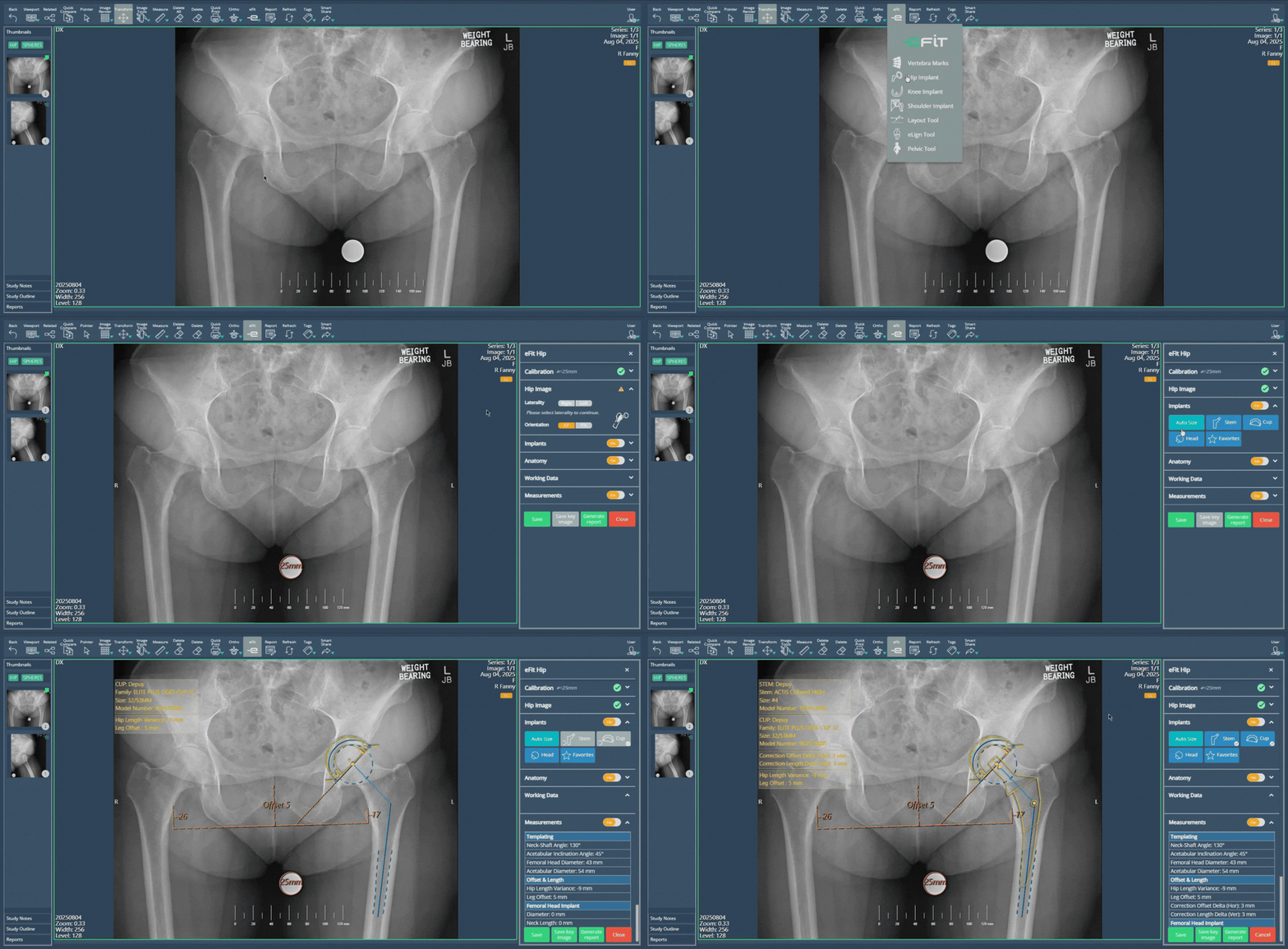
The eFit panel workflow has been improved with an automated expand and collapse behavior that guides users through the calibration, imaging, and implant selection steps in a structured sequence.
The Calibration section is now always expanded by default and displays a progress indicator while the default calibration is being processed. Once completed, it automatically collapses and updates its header to reflect the selected calibration type along with a completion indicator.
Following calibration, the Hip Image section automatically expands to prompt the user to select image laterality. Once a valid selection is made, the section collapses and is marked as completed in the header.
Finally, the Implant section expands automatically after laterality selection and becomes fully interactive, enabling users to proceed with implant-related configurations.
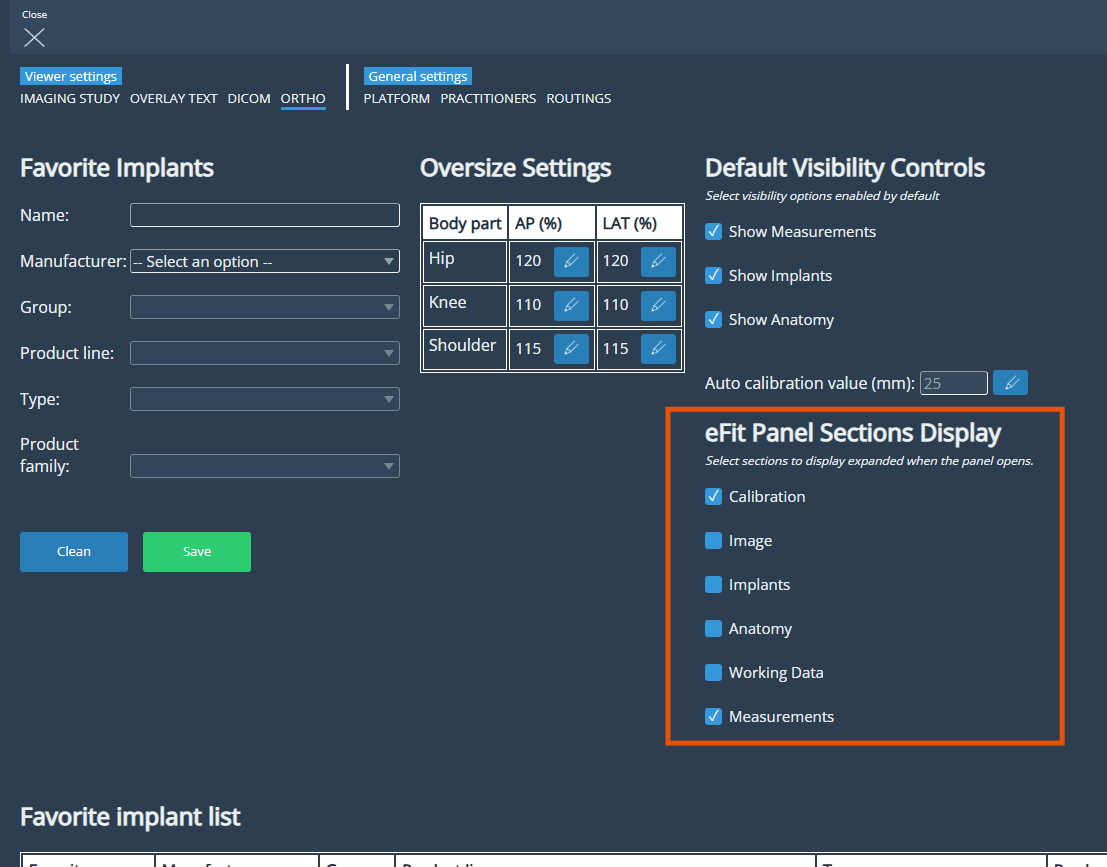
Additionally, users who prefer to keep sections expanded by default can configure this behavior in the new settings available in the Ortho viewer settings panel.
As part of these workflow improvements, the AI calibration option has been renamed to AutoSize, providing terminology that more accurately aligns with the automated sizing workflow.
Throughout the workflow, users retain full control and can reopen any previously completed section at any time.
• Anatomy and Implant Layer Visibility Toggles
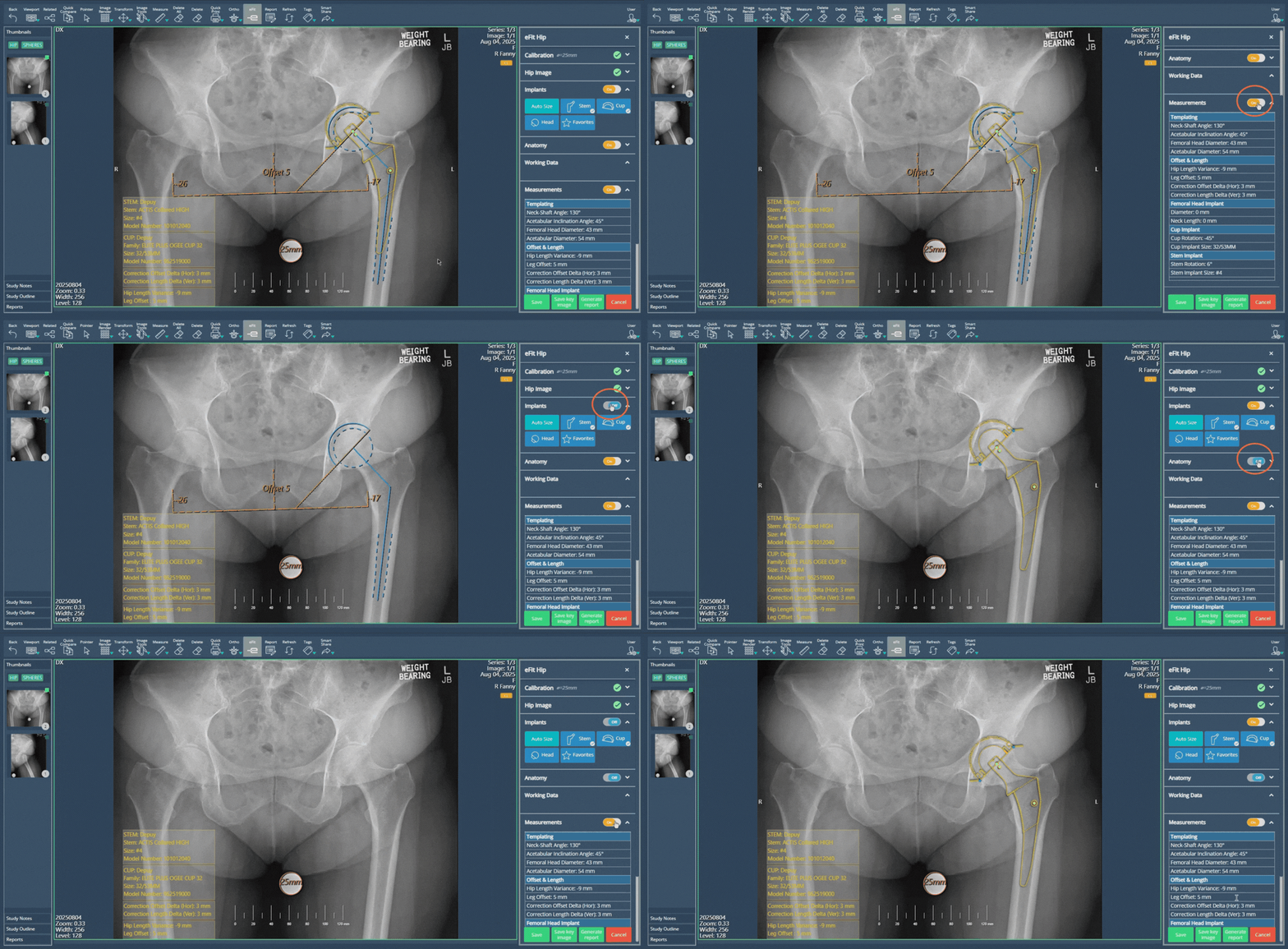
The Hip Implant panel sections has been enhanced with direct visibility toggles for both the Anatomy and Implants layers, improving accessibility and simplifying layer management.
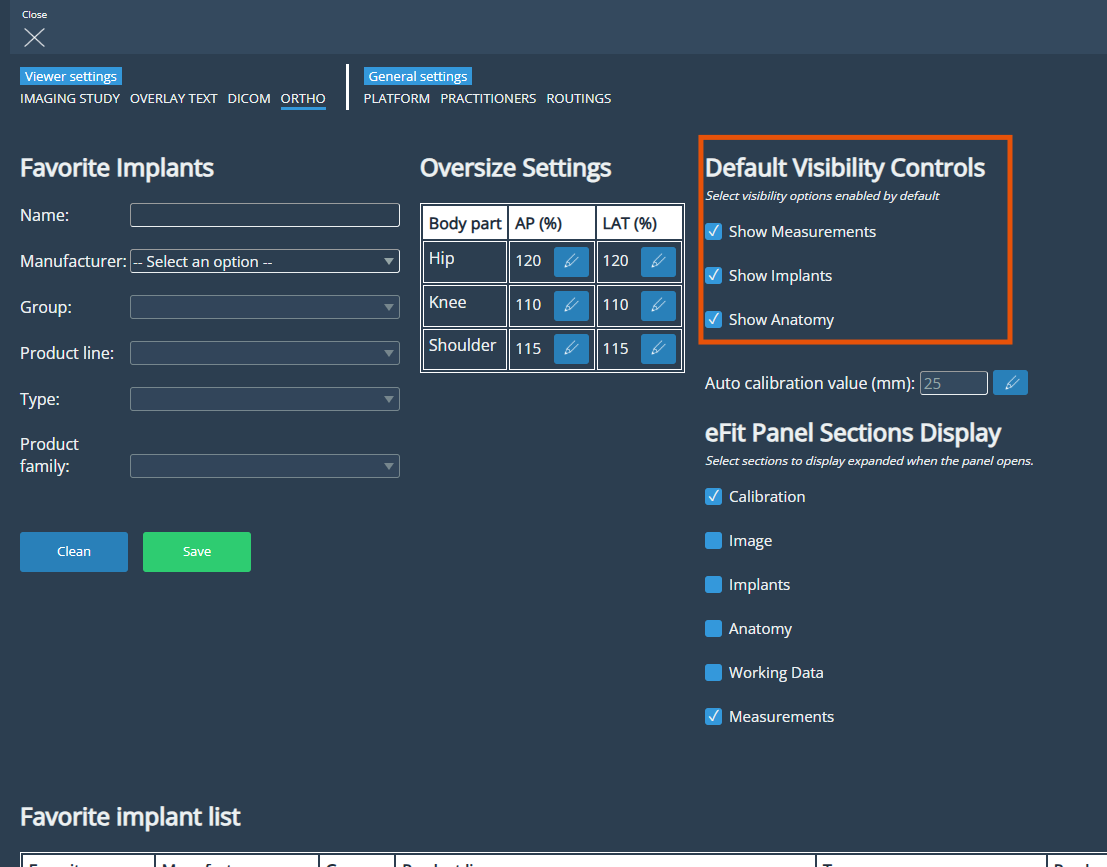
Each section header now includes a toggle switch that allows users to show or hide its corresponding layer. These controls provide quick access to layer visibility without altering any existing functionality within the sections. Additionally, the default visibility state of these elements can be configured through the Viewer settings in Ortho, allowing organizations to define whether they are displayed automatically when opening a planning session.
Default Visibility Controls
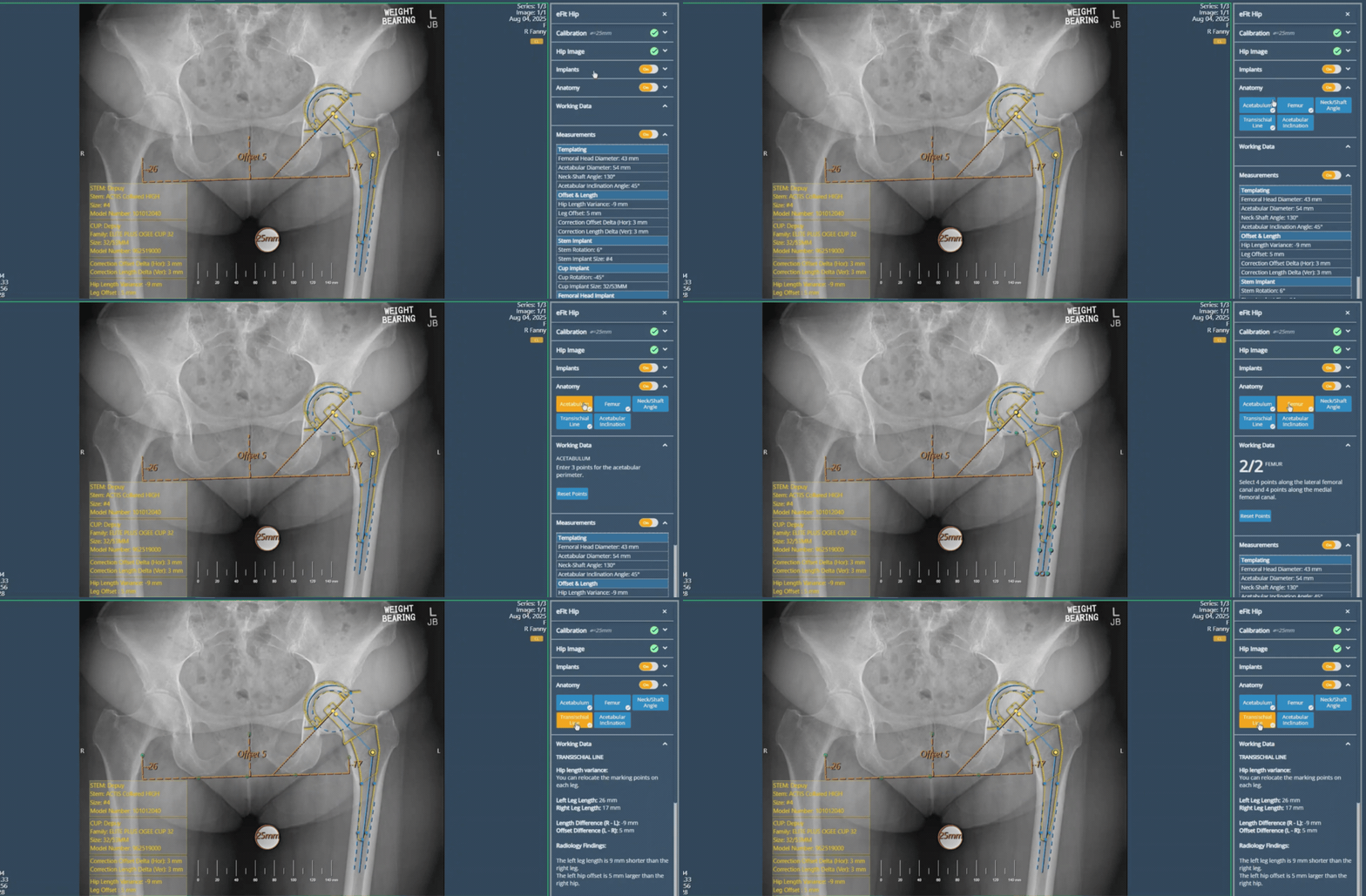
• Hip Implant Workflow – Anatomy Point Group Visibility
Users can now control the visibility of key anatomy point groups within the Hip Implant workflow. The supported groups include Acetabulum, Femur, and Transischial Line. Each group can be toggled independently through its corresponding button, allowing users to show or hide specific anatomical references as needed. Changes are applied immediately in the viewport.
eFit: Oversize Settings & Automatic Calibration
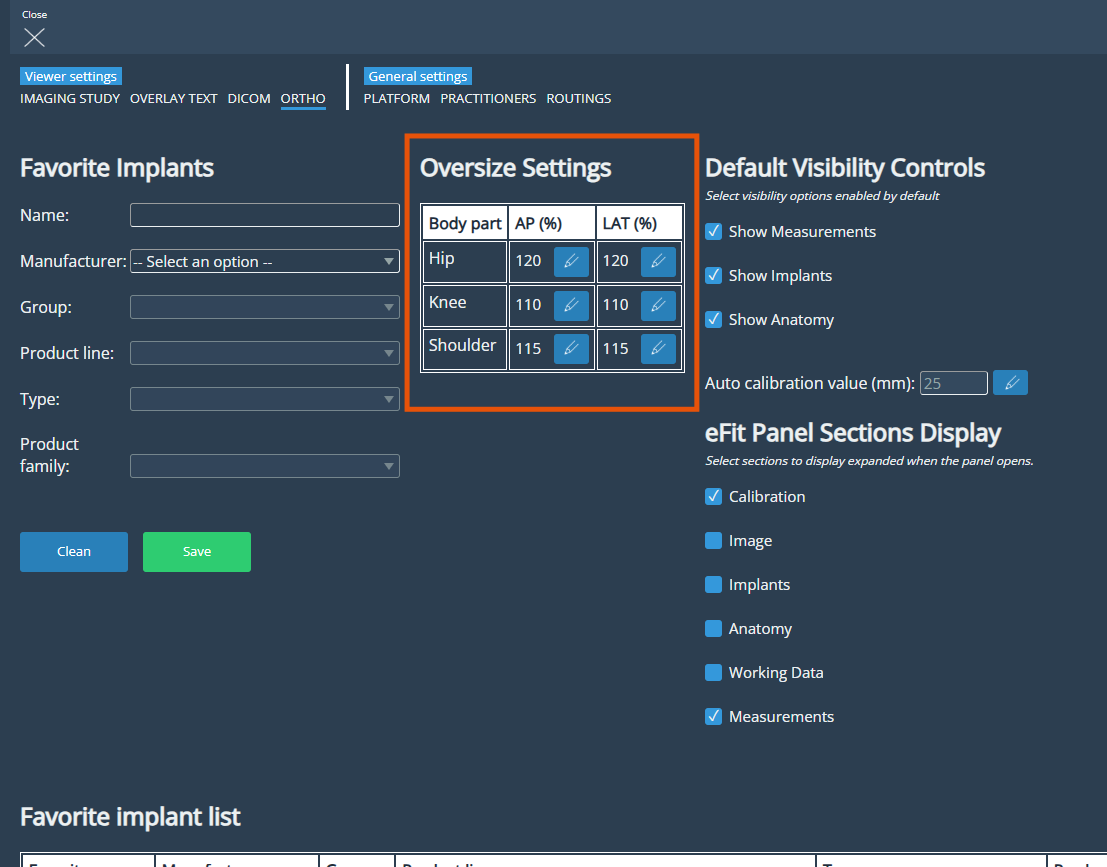
A new Oversize Settings section has been added under Settings → Viewer Settings → Ortho, allowing administrators to configure the default Oversize percentage used when opening studies in eFit.
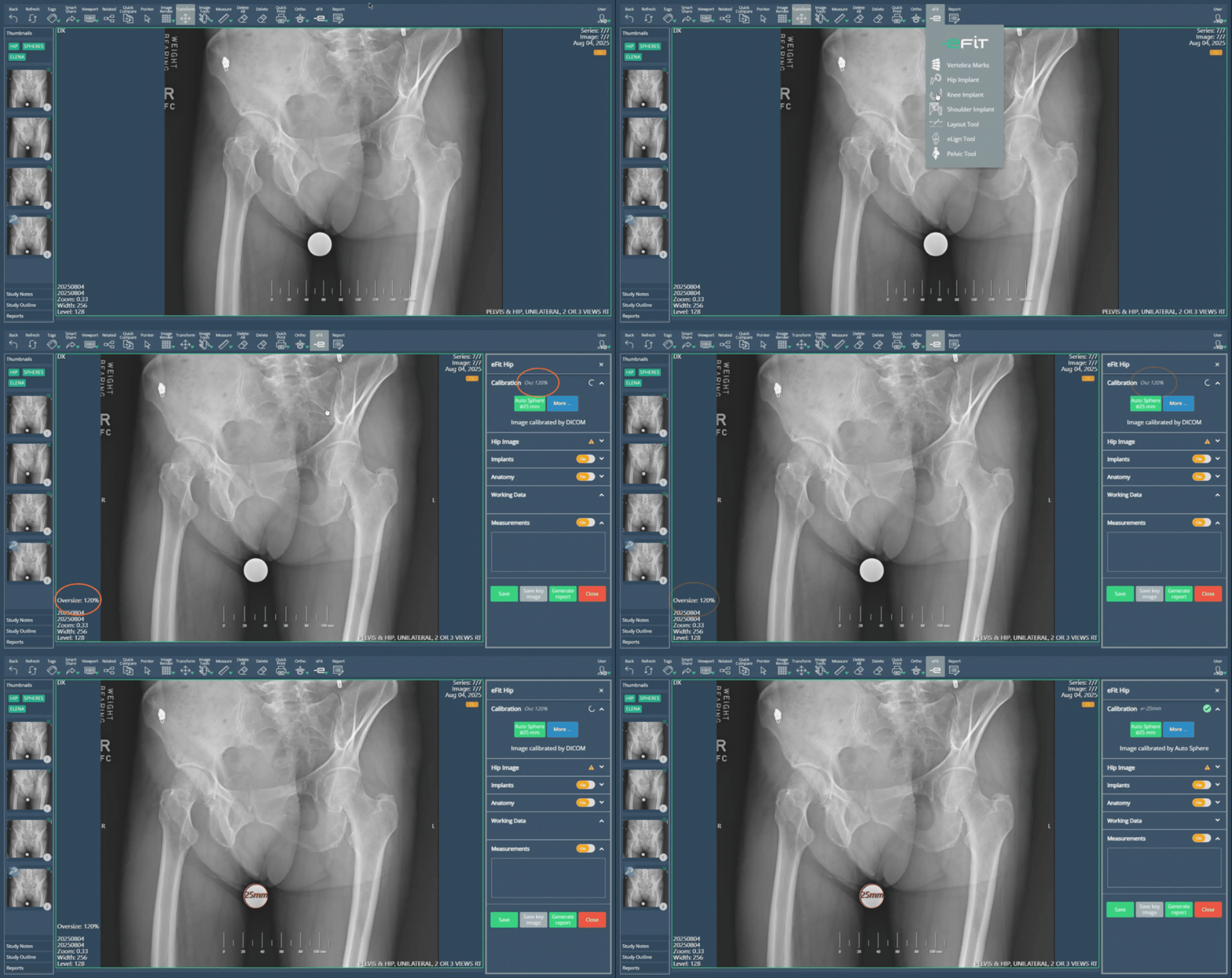
This enhancement streamlines the calibration workflow by automatically applying a starting calibration based on the body part being templated and, when available, using a calibration sphere to improve measurement accuracy. As a result, users can begin templating faster with fewer manual adjustments.
Oversize Settings
When the templating panel is opened, the system automatically applies the default Oversize value based on the body part being templated. This provides an immediate starting calibration, allowing users to begin templating without performing any manual calibration steps.
Following the initial calibration, studies that include a calibration sphere are automatically recalibrated using the sphere as a reference. This provides greater measurement accuracy during templating.
Once completed, the detected calibration sphere is automatically shown on the image and the calibration value is updated accordingly.
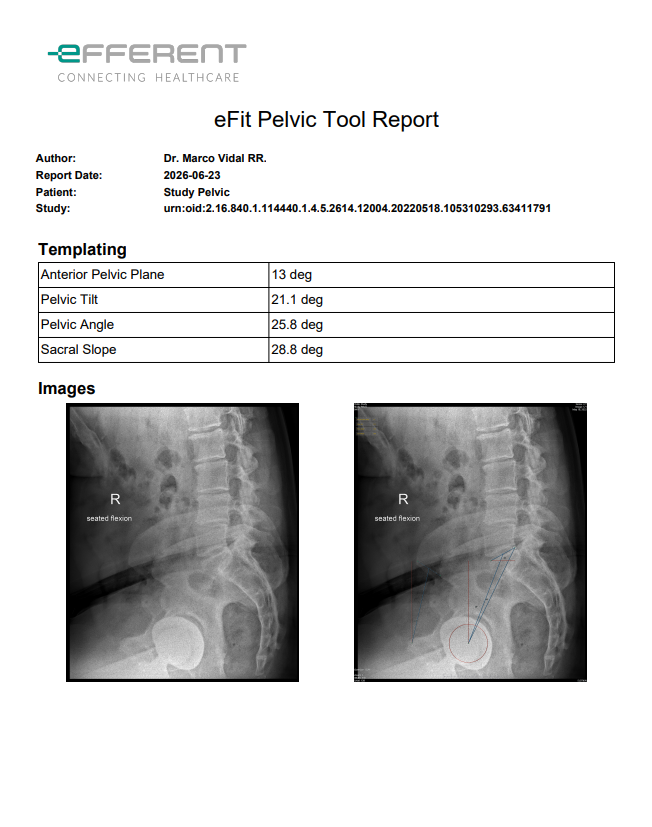
Pelvic Tool Report
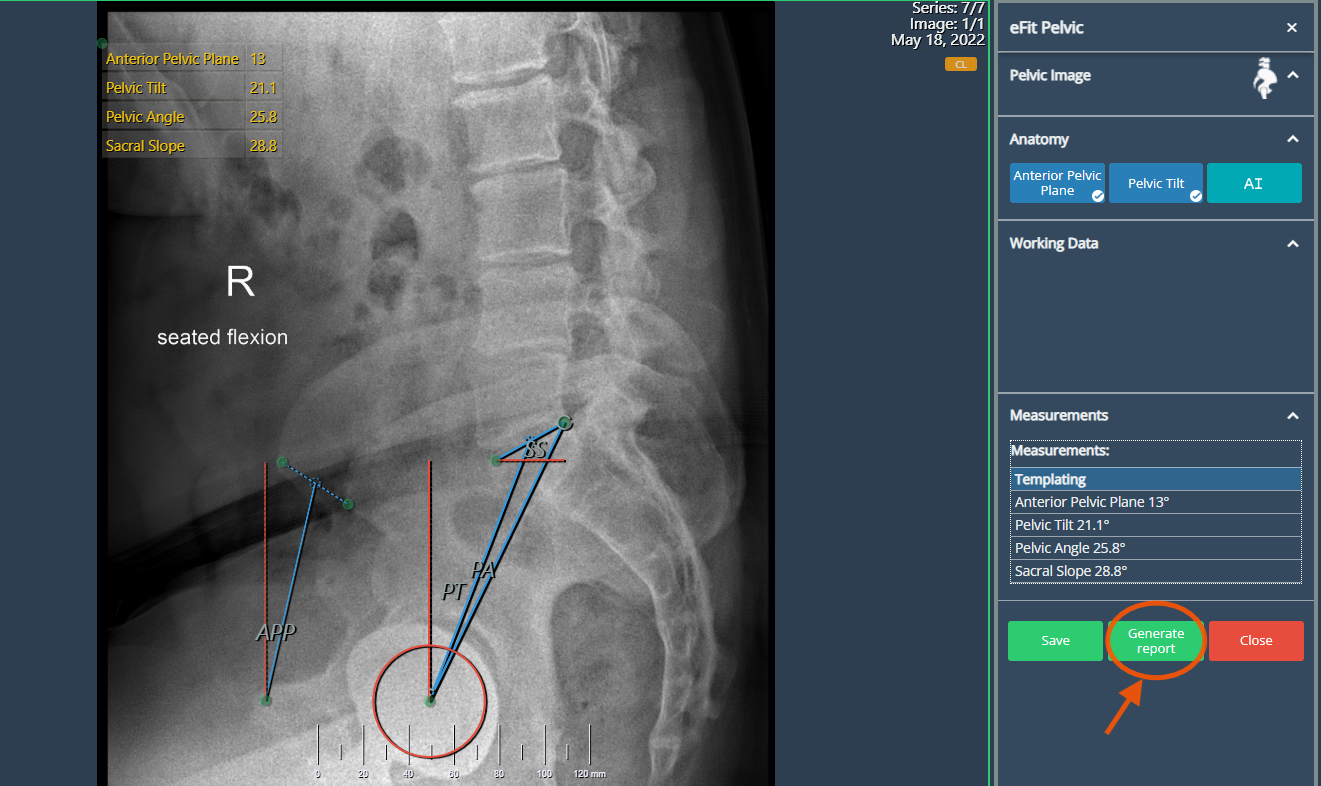
The Pelvic Tool now supports report generation for completed operations. In line with the Hip Implant and Knee Implant modules, users can export a PDF report containing all procedural measurements, enabling external sharing as needed.
Toolbar Customization Dialog
The existing Toolbar Configuration feature has been enhanced to provide a more flexible and complete customization experience. Previously, users could only rearrange the order of tools in the toolbar, without the ability to control tool visibility.
With this update, a dedicated Toolbar Customization dialog has been introduced, allowing users to fully tailor the toolbar according to their workflow needs.
The dialog is structured into two sections:
Hidden buttons (Left Panel): Displays all tools that can be added to the toolbar. Tools not currently visible in the toolbar will appear in this list.
Active buttons (Right Panel): Shows the tools that are currently enabled and visible in the toolbar.
Through this new dialog, users can freely move tools between both sections, effectively adding or removing them from the toolbar, as well as reorder the selected tools to better match their preferred usage. In addition, users have the ability to save their customized configuration and restore the default toolbar setup whenever needed.
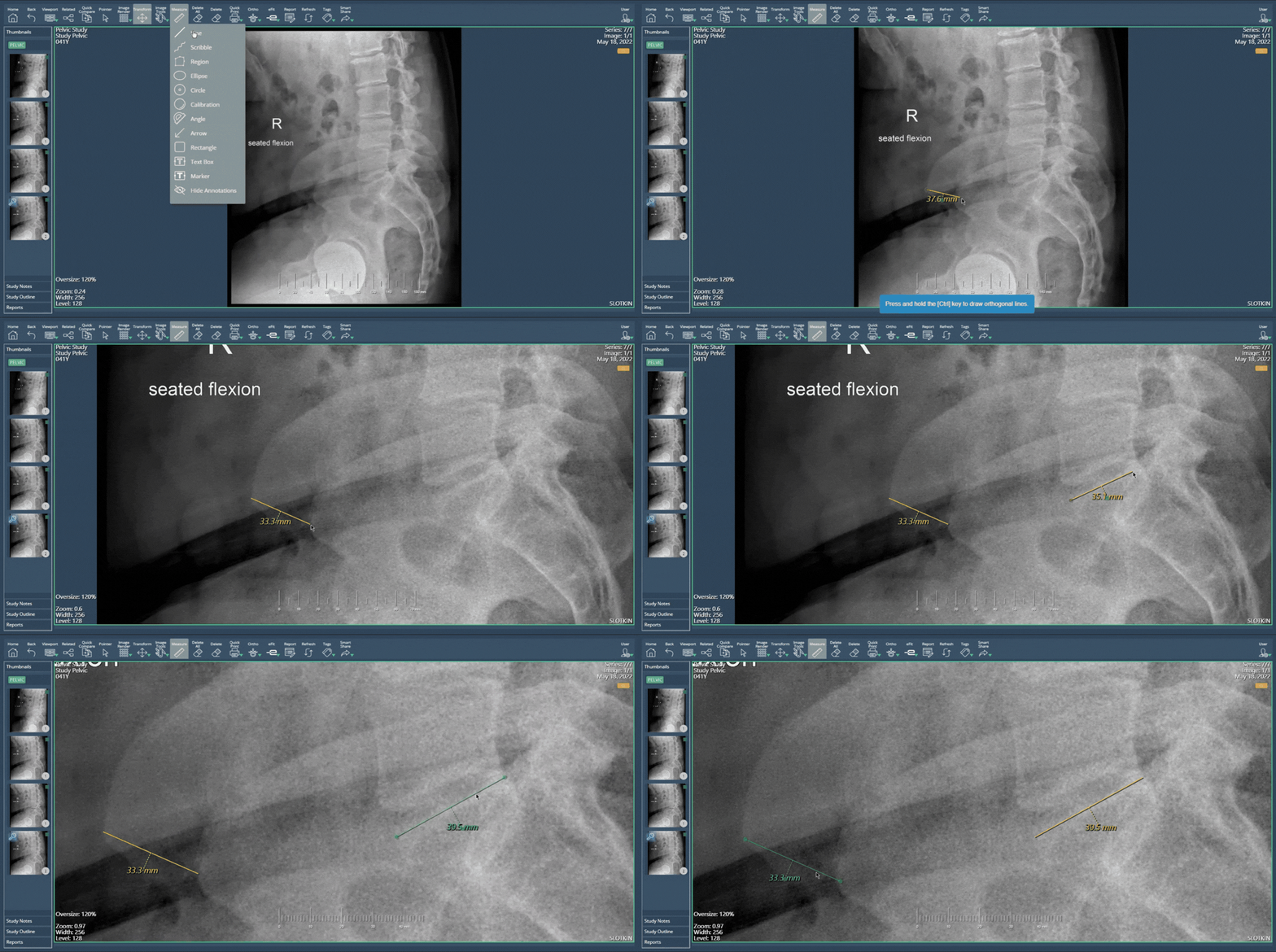
Improved Interaction and Precision for Annotations
Users can now interact with Measure annotations in a smoother and more fluid way. The experience has been improved to allow editing and repositioning annotations more intuitively, as well as zooming in and out using the mouse scroll for greater precision while adding measurements on the image.
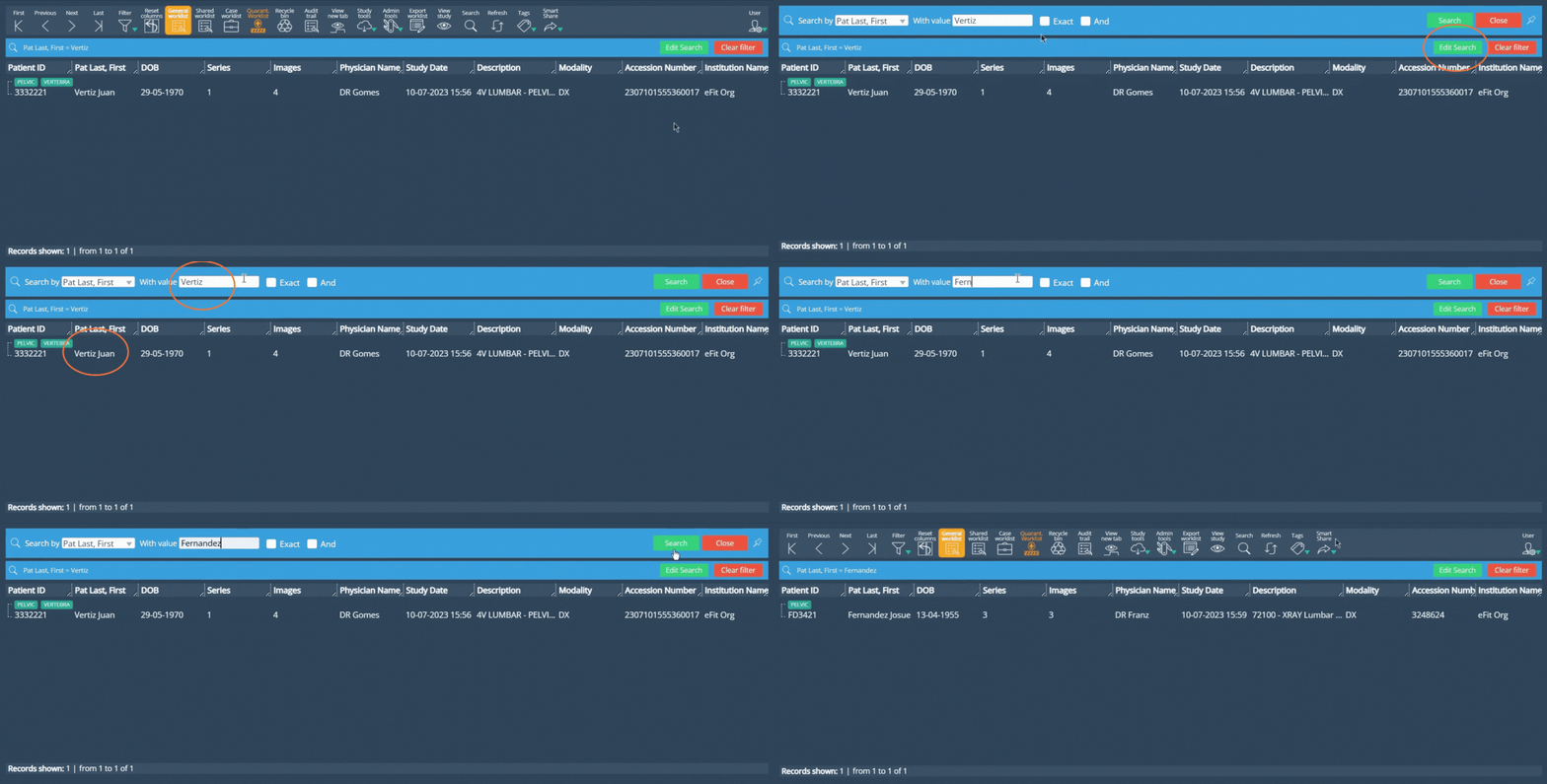
Search Editing Workflow Improvements
The search experience has been enhanced to make refining search results faster. The Edit Filter action has been replaced with Edit Search. After search results are displayed, users can select Edit Search to restore the Search bar with the previously selected search parameter(s) and entered value(s), allowing the search to be updated directly from the same view.
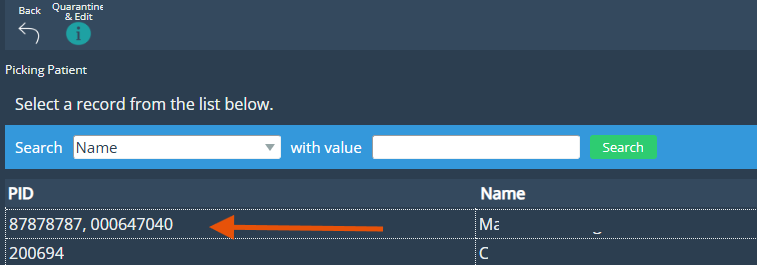
Enhanced PID Display within the Pick Patient Table
In the Pick Patient table within the Edit Study view, the PID column now displays all identifiers associated with a patient instead of only the primary identifier. This provides greater visibility into patient information and helps users more easily identify the correct record during patient selection.
Bug Fixes
Annotation Tool Persistence Fix for Cobb Angle and Plumb Line: Fixed tool behavior to allow users to draw multiple Cobb Angle annotations consecutively without reselecting the tool. Users can also now create Plumb Line annotations immediately after selecting the Plumb Line tool.
Annotations Could Not Be Drawn Consecutively Fixed an issue that allowed only one annotation to be drawn at a time. Annotation tools now remain active, enabling users to create multiple annotations consecutively until exiting the tool with Pointer or ESC.
Deprecations
None
Known Issues
None
Upcoming Features
None
Thank you for being a valued user of Efferent. We hope these updates enhance your experience. For any questions or feedback, please contact our support team at support@efferenthealth.com